USBDriveLog is a new tool for Windows 10 that displays the history of USB drives plugged to your computer.
For every USB drive plugged to your computer, the following information is displayed: Device Model, Revision, Manufacturer, Serial Number, Plug Time, Unplug Time, Device ID, Device Capacity, File System, Disk Number.
USBDriveLog allows you to retrieve the information from your local computer, from remote computer on your network, and from external hard drive.
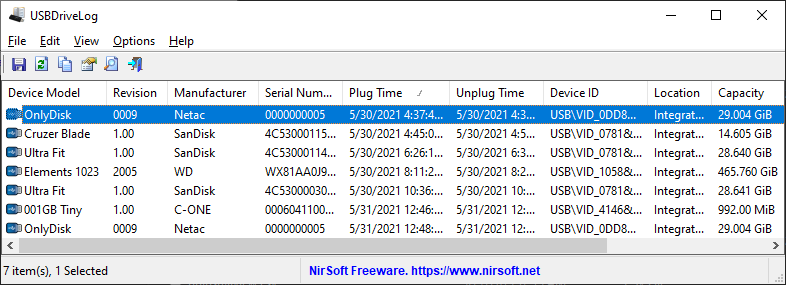
You can download the USBDriveLog tool from this Web page.
Posted by NirSoft on June 13, 2021 at 6:45 am under Utilities Update.
Comment on this post.
ManageWirelessNetworks is new tool that provides an alternative tool to the standard ‘Manage Wireless Networks’ of Windows (‘Manage Known Networks’ on Windows 10). It displays extensive information about every wireless profile on your system, even if the network adapter is not active. For every wireless profile, the following information is displayed: Profile Name, SSID, Connection Type, Connection Mode, Authentication, Encryption, Key Type, Auto Switch (Yes/No), Non Broadcast (Yes/No), Profile Position, Created Time, Modified Time, Wireless Key, and more…
ManageWirelessNetworks also allows you to edit a single profile with the standard editor of Windows, edit the XML of the wireless profile (For advanced users only !), quickly switch between manual and automatic mode (‘Set Connection Mode’), quickly switch between WPAPSK/WPA2PSK/WPA3SAE/AES/TKIP modes, rename the profile, rename the SSID, move profile position up and down, copy multiple wireless profiles to another wireless card on your system, duplicate a wireless profile, and more…
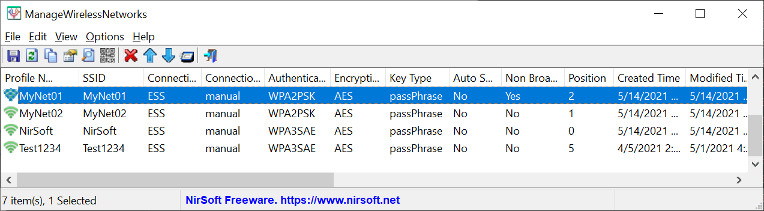
You can download the new ManageWirelessNetworks tool from this Web page.
Posted by NirSoft on May 18, 2021 at 8:20 am under Utilities Update.
1 Comment.
WebBrowserBookmarksView is a new tool for Windows that allows you to view the details of all bookmarks stored in Chrome and Firefox Web browsers. For every bookmark, the following information is displayed: Title, URL, Folder Name, Folder Path, Position, Created Time, Modified Time (Only Firefox), ID, Guid, Web Browser, and Bookmarks File.
WebBrowserBookmarksView allows you to load the bookmarks list from your current running system (current logged in user or all user profiles), from remote computer on your network , and from external hard drive.
You can also search a bookmark using the ‘Quick Filter’ option, export the bookmarks list to csv/tab-delimited/html/xml file, copy the bookmarks to the clipboard and then paste them to Excel or other spreadsheet application, and open a Web site from your bookmark in your Smartphone by using QR Code.
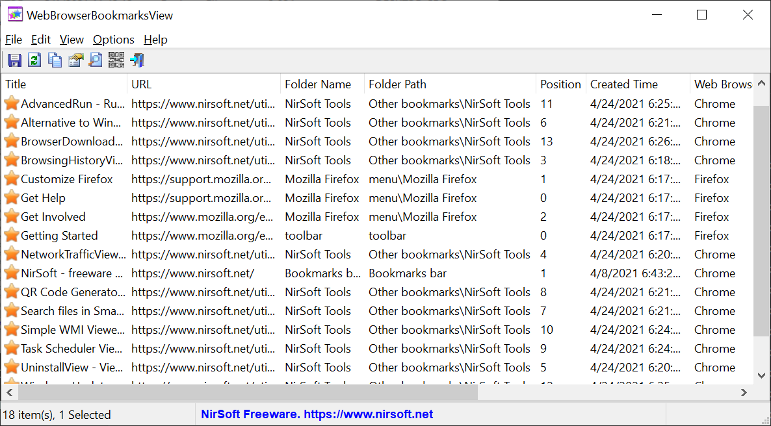
You can download the WebBrowserBookmarksView tool from this Web page.
Posted by NirSoft on May 4, 2021 at 8:37 am under Utilities Update.
Comment on this post.
The new version of OutlookAddressBookView tool (2.30) allows you to create vCard for one or more contacts in the address book of Outlook.
You can generate the vCard of your address book items in 3 different ways:
- Copy the vCard text to the clipboard (Edit -> Copy As vCard)
- Export the selected address book items to vCard file (File -> Save Selected Items , and from the file type combo-box choose ‘vCard file’)
- Display the selected address book contact in QR Code (View -> Display QR Code), and then you can add this contact to your Smartphone with QR Code reader App.
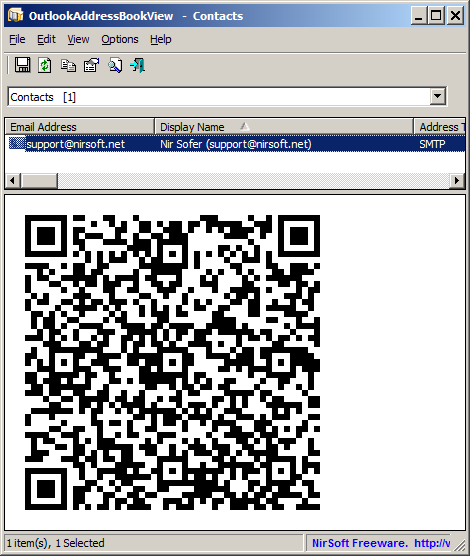
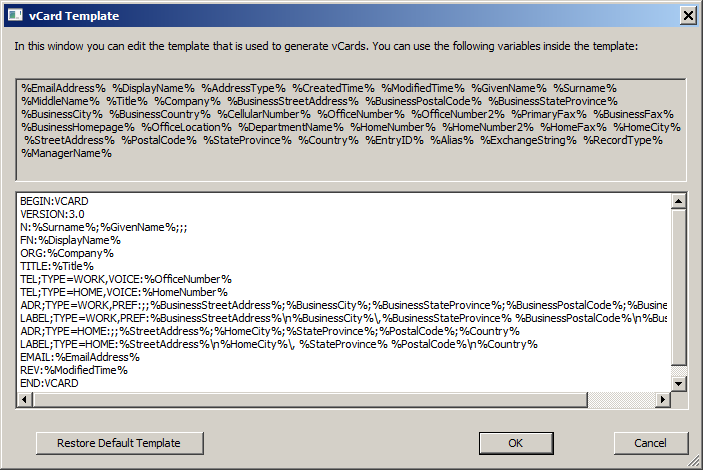
OutlookAddressBookView also allows to create your own template that is used to generate the vCard file (Options -> Edit vCard Template). This feature might be useful if you want to generate different version of vCard or remove some of the fields.
You can download the new version of OutlookAddressBookView from this Web page.
Posted by NirSoft on April 3, 2021 at 2:13 am under Utilities Update.
Comment on this post.
SimpleCodeGenerator is a new tool for Windows that allows you to easily create QR Code for scanning with QR Code reader App on your Smartphone.
You can display the QR Code on the screen, copy it to the clipboard and then paste it to another program (as image), or save it image file – .png , .gif , .jpg , .tiff, or .bmp
SimpleCodeGenerator also allows you to generate QR Code from command-line and save it as image file ( .png , .gif , .jpg , .tiff, or .bmp) without displaying any user interface.
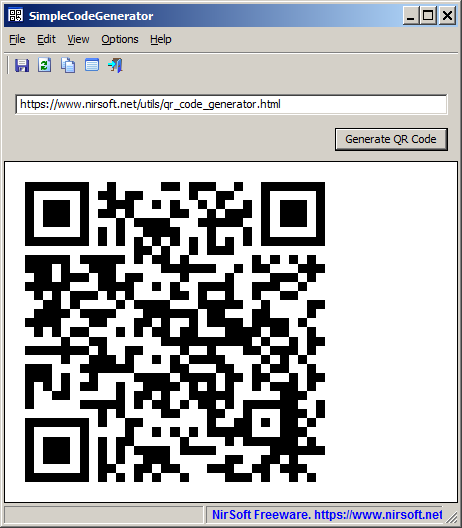
Like other NirSoft tools, SimpleCodeGenerator is a standalone .exe file that you can run on any system (From Windows XP and up to Windows 10) without installing anything.
You can download this new tool from this Web page.
Posted by NirSoft on March 26, 2021 at 7:38 am under Utilities Update.
4 Comments.
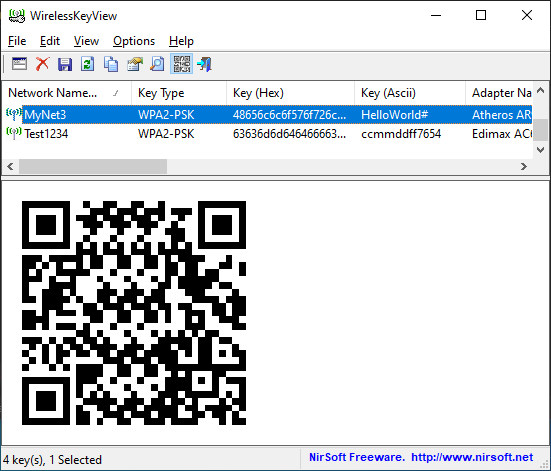
The new version of the WirelessKeyView tool (v2.20) allows you to easily connect your Smartphone to a wireless network that is already configured on your computer with Windows operating system.
In order to use this feature, simply enable the ‘Display QR Code’ option under the View menu (or press the F2 key), select the desired Wifi network you want to connect, and then scan the QR Code displayed in the lower pane of WirelessKeyView with QR Code reader App on your smartphone.
You can use any QR Code reader App you like, as long as it supports Wi-Fi Network configuration.
You can download the new version of WirelessKeyView tool from this Web page.
Posted by NirSoft on October 6, 2020 at 5:20 pm under Utilities Update.
4 Comments.
The new version of the FullEventLogView tool (v1.55) automatically converts the EventPayload element of the Event XML from hexadecimal string to readable text, and displays it as the description of the event.
This feature is especially useful for viewing the .etl log files of Windows 10 Update, usually stored under the C:\Windows\Logs\WindowsUpdate folder.
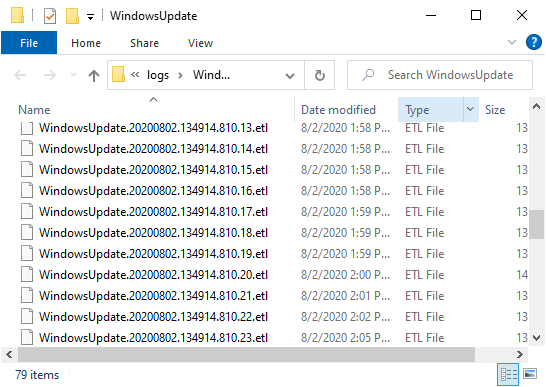
In order to view the .etl files of Windows 10 updates, open the ‘Choose Data Source’ window of FullEventLogView tool (F7), choose the ‘Load events from external folder with log files’ option,
fill the desired Windows Update logs folder (Usually the folder is C:\Windows\Logs\WindowsUpdate ), and then press the ‘OK’ button.
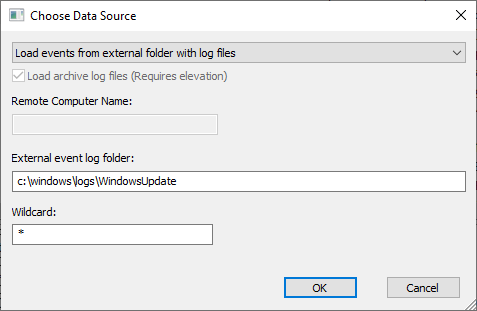
You should also open the ‘Advanced Options’ window (F9), and choose the desired time range of the events (The default is to view only the events from the last 7 days)
After you set FullEventLogView to read the .etl files of Windows update logs, you should see the Windows update logs with the description, which is taken from the EventPayload of the event XML:
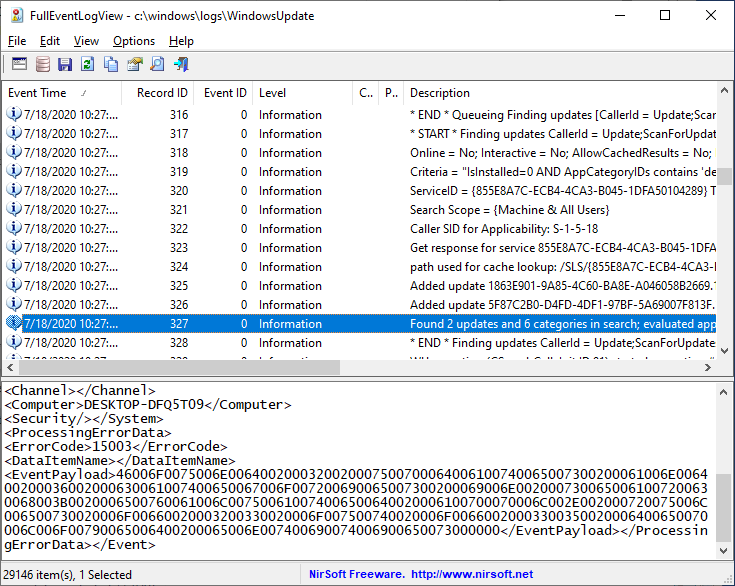
You can download the FullEventLogView tool from this Web page.
Posted by NirSoft on September 3, 2020 at 1:26 am under Utilities Update.
2 Comments.
The new version of USBDeview tool (3.00) displays 4 new date/time fields for every USB device: Install Time, First Install Time, Connect Time, Disconnect Time.
These fields are stored in the Registry under the Properties\{83da6326-97a6-4088-9453-a1923f573b29} subkey of every USB device.
The ‘Properties’ Registry key is only accessible for SYSTEM user, and thus you have to run USBDeview as Administrator in order to view these new fields.
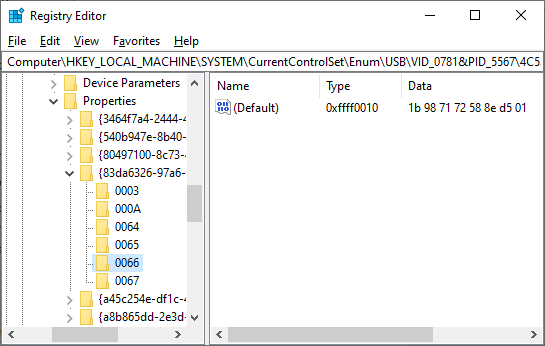
USB Connect Time In RegEdit
Also, these fields are only available from newer versions of Windows – ‘Install Time’ and ‘First Install Time’ fields are available starting from Windows 7.
The ‘Connect Time’ and ‘Disconnect Time’ fields are available starting from Windows 8 (Including Windows 10). The ‘Connect Time’ field represents the last time that the USB device was plugged to your computer, and the ‘Disconnect Time’ field represents the last time that the USB device was unplugged from your computer.
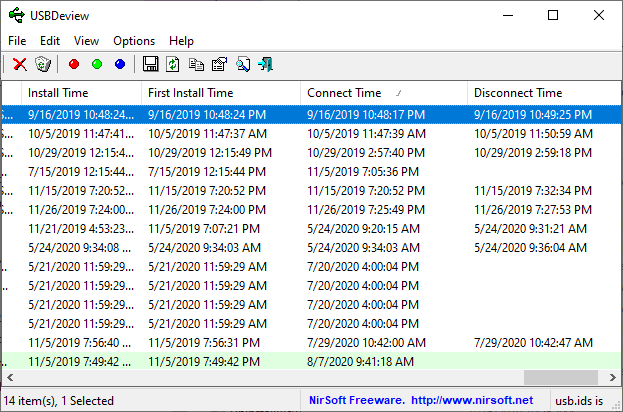
New Date/Time Fields In USBDeview
You can download the new version of USBDeview from this Web page.
Posted by NirSoft on August 7, 2020 at 3:59 am under Utilities Update.
1 Comment.
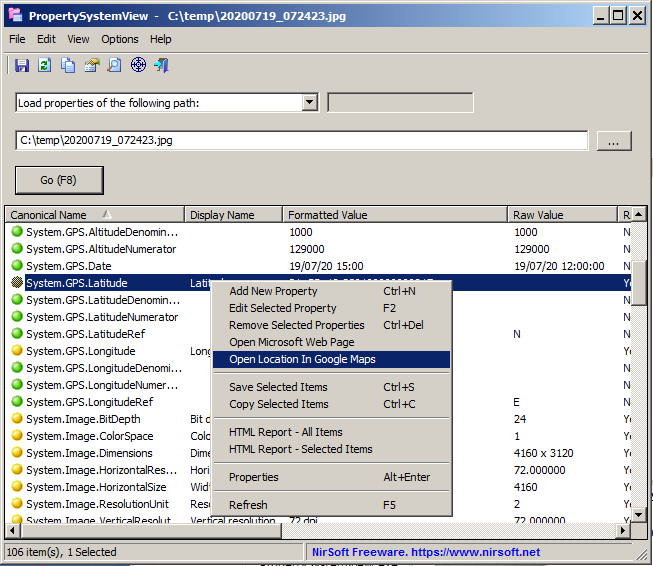
The new versions of PropertySystemView and ExifDataView allow you to easily open the location of .jpg file in Google Maps. This feature works only for .jpg files that contain GPS information (Also known as ‘Geo-tagging’ ).
In order to use this feature, simply open the desired .jpg files with the PropertySystemView tool or with the ExifDataView tool. Click with the right mouse button on the main window and then choose the ‘Open Location In Google Maps’ menu item. The tool will open the location of the image in Google Maps Web site, using your default Web browser.
Posted by NirSoft on July 31, 2020 at 3:36 am under Utilities Update.
Comment on this post.
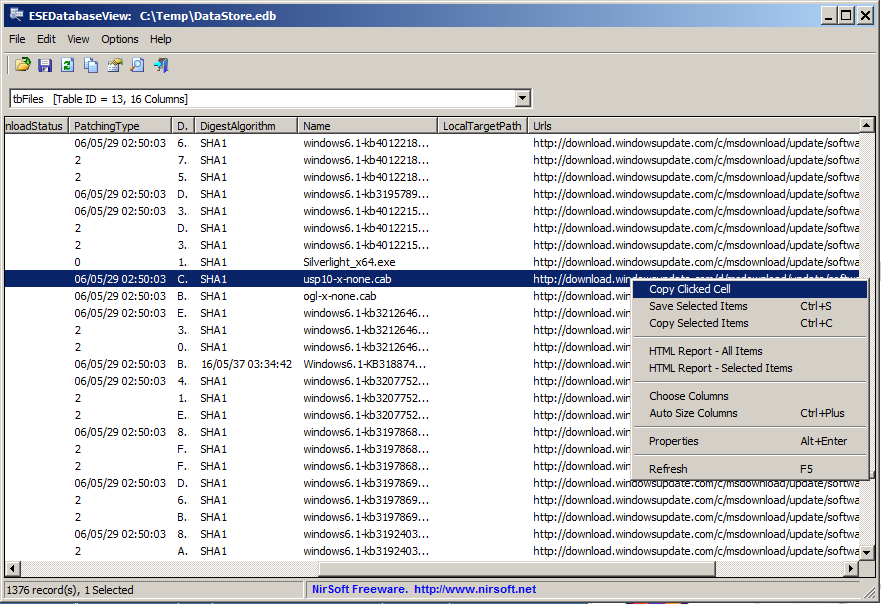
The new versions of ESEDatabaseView, CSVFileView, and SimpleWMIView allow you to easily copy into the clipboard the text of any cell you want.
In order to do this, simply click with the right mouse button on the cell you want to copy, choose the ‘Copy Clicked Cell’ item from the opened context menu, and then the entire text of the cell you clicked will be copied to the clipboard.
Posted by NirSoft on July 30, 2020 at 9:23 am under Utilities Update.
Comment on this post.