A few months ago, I released a new version of both SmartSniff and SniffPass with support for using them with Microsoft Network Monitor 3.x
In the release details, I also specified that ‘Wifi Monitor Mode’ button was added for using ‘Monitor Mode’ under Windows Vista/7/2008, but without giving extensive explanation about how to use this feature. So in this blog post, I’ll add more details about this ‘Wifi Monitor Mode’ and how to use it on SmartSniff and SniffPass.
When a wireless network card enters into a ‘Monitor Mode’, it listens to specific channel that you choose and captures all the packets that are sent by wireless networks on your area in the specific channel that you selected. If the wireless network that sent the packet is unsecured, SmartSniff and SniffPass will be able to show you the packets data.
Before I start to explain you how to use this mode, here’s the system requirements for using ‘Monitor Mode’:
- Unfortunately, this mode is only supported on Windows Vista, Windows 7, and Windows Server 2008. Windows XP is not supported.
- Both the network card and the device driver must support this mode. I currently don’t have a list network cards that support this mode under Windows. However, if you manage to get your card into monitor mode, it’ll be nice if you post your card model as comment to this Blog post.
Also, be aware that according to Microsoft, some Wifi drivers may cause a system crash when entering into monitor mode.
Finally, here’s the instructions for using ‘Wifi Monitor Mode’ with SmartSniff and SniffPass:
- First, download and install the latest version of Microsoft Network Monitor 3.x if it’s not already installed on your system.
- Run SmartSniff if you want to capture general TCP data or SniffPass if you only want to capture passwords. Be aware that SniffPass can only capture passwords that are not encrypted. Most Web sites and services of large companies use SSL to encrypt the passwords, and thus SniffPass cannot capture them.
- Go to the ‘Capture Options’ window (F9), choose ‘Network Monitor Driver 3.x’ as a capture method, and then click the ‘Wifi Monitor Mode’ button.
- In the opened ‘Wifi Scanning Options’ window, choose the right wireless card (in most cases you should have only one) and then check the ‘Switch to Monitor Mode’ option.
- You can now select to scan a single channel or to switch between multiple channels every x milliseconds. After you selected the desired channels, click the Apply button.
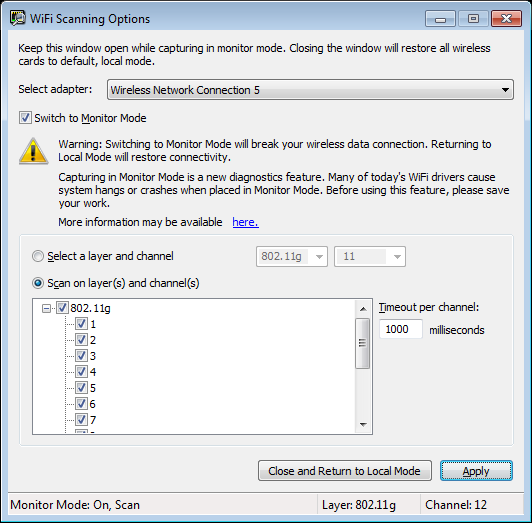
Wifi Scanning Options
- The most important thing: Leave this window opened !
When you close this window, the network card will exit from monitor mode and it’ll return back to its normal state. - In ‘Capture Options’ window of SmartSniff/SniffPass – select the right wireless card and then press the ‘Ok’ .
- Finally, press F5 to start the capture. If you have any active unsecured networks in your area, you’ll be able to see the captured data.
- After you finish, close the ‘Wifi Scanning Options’ window, so your wireless card will return back to normal.
The information in this article is provided for educational purposes only and for making people aware of the risks of using unsecured wireless networks. it’s not intended to be used for any illegal activity.

StyrianOak says:
Hi,
works with an Intel Wireless WiFi Link 4965AGN!
Would be nice if the channel of the captured conversations could be shown ?
Thank you for all these GREAT tools, kind regards – StyrianOak
November 9, 2010, 6:25 amsuppertoolz says:
thanks for your all software Nirsoft.
January 25, 2011, 7:12 amkhan says:
Dell Wireless 1395 WLAN Mini-Card does NOT work.
March 9, 2011, 11:12 pmForge says:
I have a TP-Link TL-WN951N which I believe has a Atheros chip(not sure) I followed the instructions and meet the system requirements but when I go to capture options and try to select Network Monitor Driver 3.x the option is grayed out does this mean no support?
March 11, 2011, 9:06 pmtheITGuy says:
A Dell Wireless 1505 Draft 802.11n WLAN Mini-Card Works
March 22, 2011, 11:47 pmrazz05 says:
Forge, I’m having the same problem. That option is grayed out… Can anyone help us?
March 24, 2011, 3:16 pmDynam0 says:
Works great with a TP-Link TL-WN651G PCI Card and Windows 7
Your utilities are the best! Thanks
April 5, 2011, 6:22 amMike says:
Im using an Atheros AR9285 built in to my asus laptop and it doesnt seem to capture anything, however im low on unsecure networks nearby so going to test elsewhere and check for sure
I get the occasional UDP protocol from some local address which is clearly not within my own network so could be getting something from an outside network source, will investigate more
I heard a certain type of netgear usb wireless g devices work, looking for something that works good and is usb with wireless n, g and b myself anyone got any solid suggestions for a cheap usb wireless device that does b, g and n and can work with this stuff
Seen the software work flawlessly with local device my own computer activity it monitors and gets passwords and other stuff really good
Thanks
April 18, 2011, 10:59 pmDavid says:
I’m very glad to use this feature!
Now I’m trying to do some projects with the api. However, I cannot find out how to switch to monitor mode with codes. Would you please help me?
Thanks~
May 14, 2011, 6:25 pmkulminator2 says:
Realtek RTL8187W with Windows 7 ultimate 32 bits O.K. Thanks
June 2, 2011, 3:41 pmTK says:
works fine with Broadcom 4321AG 802.11a/b/g/draft-n Wi-Fi Adapter on Vista 32bit SP2
802.11a band does not expose all available channels but 802.11n mode does reveal more “a” band channels but still not all of the band 5GHz band allocation unlike 802.11g which exposes from 1 to 14.
Keep up the great work (the entire fleet of tools not just smartsniff)
July 15, 2011, 4:31 pmtral says:
It’s greyed out here too. what does it mean, and can I fix it? please respond….
August 18, 2011, 6:39 pmAnonymous says:
Dell Wireless 1397 WLAN Mini-Card– not the 1395 that other guy had– works.
November 10, 2011, 5:39 amBlu says:
Folks if the Network Monitor Driver 3.x the option is grayed out you need these two files. The files are Microsoft Network Monitor Driver 3.x and WinPCap. After installing them you will have the Network Monitor Driver 3.x the option. I had the same problem as you guys, option grayed out. These fixed it and it works great now.
http://www.microsoft.com/download/en/details.aspx?id=4865
http://www.winpcap.org/
December 16, 2011, 12:40 amJE L says:
does not work on a realtek 8187 usb or engenious 802.11n usb through win 7 ultimate 64
February 18, 2012, 7:32 pmJohn Kerry says:
If it is greyed out then you need to make sure they are both the same bit size architecture. For example microsoft monitor driver is 64-bit then smartsniff needs to be 64-bit
March 5, 2012, 5:27 pmJag says:
Got a Dell 1397 WLAN here, but Network Monitor Drive option is grayed out. Installed both the Network Monitor driver and the WinPCap, still grayed out.
March 29, 2012, 2:39 amwlan kamera says:
First thanks for all your little great tools and that you give most of the for free. I developed some small open source modules for drupal so i share the concept 🙂
Works nicely with my wlan card. Much appreciated
ragards
andy
April 20, 2012, 6:34 pmberuang says:
the instruction is pretty simple but it will be nice if someone can make video tutorial for this..
May 4, 2012, 2:56 amnitehawk says:
Works with Intel(R) PRO/Wireless 3945ABG Network Connection with Win 7.
May 7, 2012, 10:30 pmThanks….
ninja says:
Works with rlt8187, i.e. alfa 036h and Airlive WL-1700usb cards under windows 7. To bad not working with xp. I cannot find driver for these cards with which can be spoofed mac adress i I’m stuck with windows xp.
May 27, 2012, 7:16 amGary says:
Interesting tool, I have been able to use it quite easily with my built-in LAN card on my MSI board. Love this stuff.
May 30, 2012, 7:41 pmKamerad says:
I have Network Monitor 3.4 but SmartSniff does not allow me to check the radio button under capture options, any ideas?
June 16, 2012, 5:45 pmKamerad says:
Fixed the above problem, however, whenever i click apply i disconnect from my wi-fi. Thoughts?
June 16, 2012, 5:58 pmdaniel says:
Kamerad – I have the Network Monitor 3.4 problem too 🙁 can’t check the button. How did you fixed this?
July 6, 2012, 1:09 pmthanks.
Phil says:
Same issue that a few others are reporting. I DO have Network Monitor 3.4 installed, and from netmon I’m able to capture wireless frames in monitor mode successfully. But in SmartSniff, the Network Monitor 3.x option is grayed out in the Capture Options dialog.
(FWIW, I’m also using an Alfa USB wireless adapter that is explicitly supposed to work in monitor mode.)
July 7, 2012, 1:04 amNirSoft says:
For the people who say that the Network Monitor 3.x option is grayed out:
If your operating system is 64-bit, you must use the x64 version of SmartSniff.
The 32-bit build of SmartSniff cannot load the Network Monitor 3.x driver under 64-bit operating system.
July 7, 2012, 2:40 amJackson says:
Help!, After going to capture options, clicking on Network Monitor Driver 3 x, and clicking on Wifi Monitor Mode, I get the message “The Handle Is Invalid”. What should I Do???????
September 4, 2012, 6:13 pmmgIT says:
khan Says:
March 9th, 2011 at 11:12 pm
Dell Wireless 1395 WLAN Mini-Card does NOT work.
—————————————————————-
This card did not work for me, either, using SmartSniff. It would not go into Monitor Mode, with the message:
August 21, 2013, 12:57 am“The request is not supported.”
Anonymous says:
Works perfectly with Intel Centrino Wireless N-130, Im thinking about integrating this into my bundle.
December 22, 2014, 5:50 pmtestmoDe says:
work greatk on HP G60 441-US !! by the way can i cracked the password using the capture file from smartsniff? how to save the capture file?
May 12, 2015, 1:50 amTony4219 says:
Worked with built-in Broadcom NIC 43224AG 802.11a/b/g/draft-n WiFi adapter used by HP in Win7pro with NetMon 3.4 installed. Could NOT get this combo to work in Winbuilder (stripped down version of Win7).
July 22, 2015, 8:26 amWen says:
Asus laptop qualcomm atheros ar9002wb-1ng wireless network adapter crashed after apply monitor mode.
March 14, 2016, 1:50 amHaydee says:
downloaded the x64 zip version and three files were extratcted. The executable file desapeared when double click and never showed up again after another extraction. please advice
October 3, 2016, 12:00 amDiego says:
Broadcom 802.11n, after enabling Monitor Mode I hardly get packets in SmartSniff, while disabling it I get quite a lot.
August 31, 2021, 1:15 pmI don’t know if this means is not working, WiFi goes offline.
This is a MacBookPro Early-2013 with windows 7 installed in bootcamp.